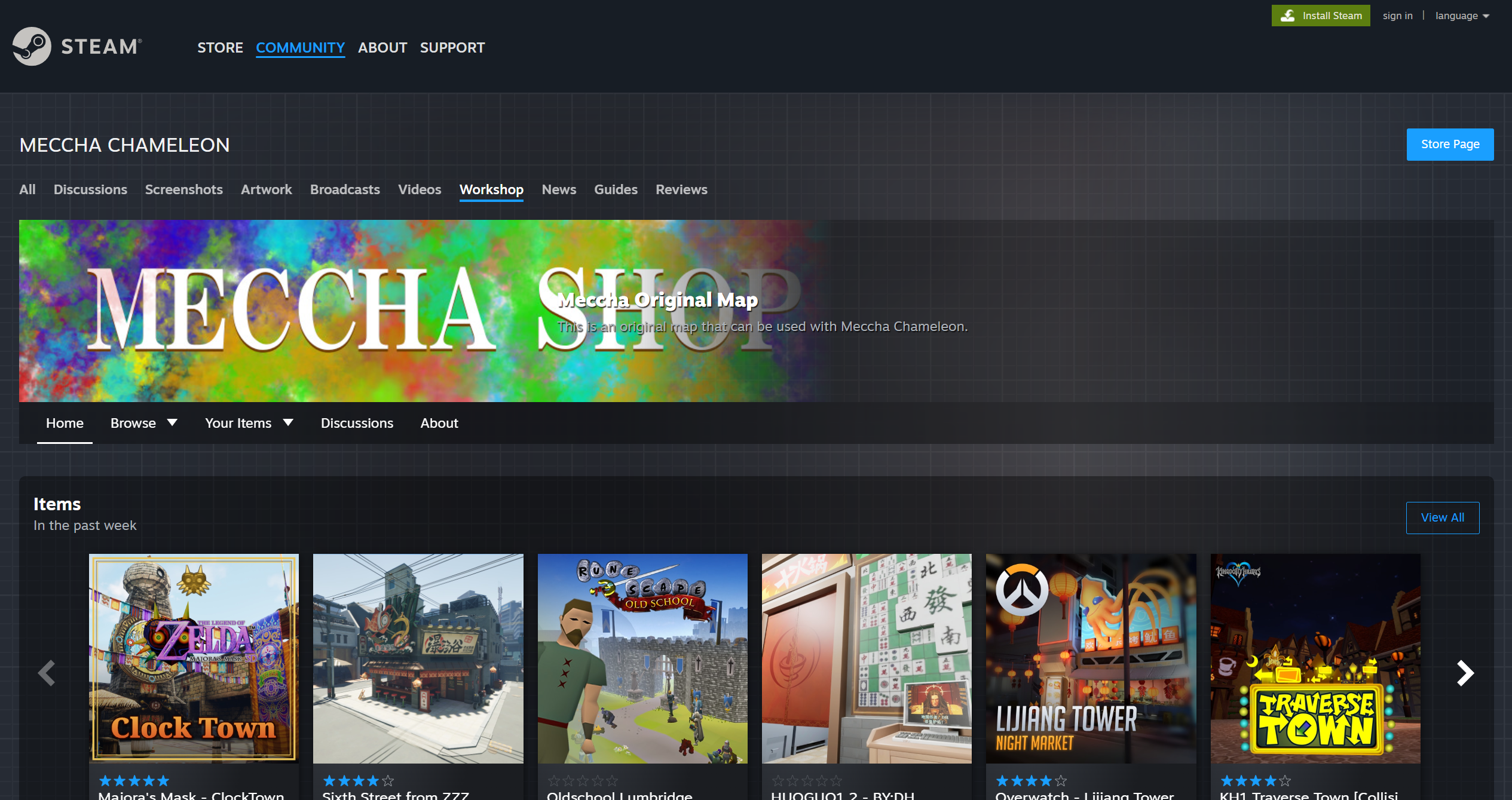
Use Steam Workshop to subscribe to extra maps, download them before playing, and remove old Workshop map files carefully.
Steam Workshop is the safest place to find extra Meccha Chameleon maps. Subscribe before joining a game so the map can download first.
DIRECT ANSWER
Can Meccha Chameleon Use Workshop Maps?
Meccha Chameleon players search for extra maps, Workshop maps, and mods. The safe starting point is Steam Workshop, where maps usually use Steam's subscribe behavior instead of a separate download button.
Treat Workshop maps differently from random mod files or cheat tools. A Workshop map is extra map content distributed through Steam Workshop; cheat tools, trainers, ESP, DLLs, and auto-paint files are a different risk category.
DOWNLOAD
How to Download a Workshop Map
Open Steam
Open Steam and go to Meccha Chameleon.
Open the Workshop Section
Use the Steam Workshop section for the game. This guide does not claim an exact in-game menu location.
Find the Map
Choose the Workshop map or mod map you want to use.
Click Subscribe
Steam Workshop normally uses Subscribe rather than a separate download button.
Wait for Steam
Steam should download the subscribed Workshop item automatically.
Start or Restart the Game
If the map does not show up right away, start or restart the game after Steam finishes downloading.
Basic checks
Download timing can depend on Steam download activity, connection speed, item size, and game version. Exact behavior may change after updates.
Why Download the Map Before Playing?
Player-reported advice says it is better to subscribe and download a Workshop map before starting or joining a game.
Friends Lobby
Avoid Making People Wait
If you enter without the map downloaded, other players may have to wait while your game downloads it.
Public Room
Less Awkward Joining
Finishing the download first reduces the chance that a public or friends lobby is delayed by your Workshop content.
Player-reported
Waiting behavior can vary by room state, host, Steam download status, and version. This page avoids promising that every room behaves the same way.
FILES
Where Workshop Files Are Stored
Steam Workshop content is usually stored inside the Steam installation or Steam library under this folder:
steamapps/workshop/content
The exact subfolder may use Steam app IDs and Workshop item IDs, so names may not be obvious. Be careful when deleting files manually, especially if the same Steam library contains Workshop content for other games.
REMOVE
How to Remove a Downloaded Workshop Map
Unsubscribe First
Open the Workshop item page and unsubscribe from the map.
Close the Game
Close Meccha Chameleon before checking files.
Let Steam Update
Give Steam time to update or remove Workshop content if it does so automatically.
Check the Folder Only if Needed
Advanced users can look under steamapps/workshop/content if the files remain.
Find the Matching Item Carefully
The folder may be numbered by app ID and Workshop item ID, so verify the map before deleting anything.
Delete Only the Confirmed Folder
Delete only the folder you are sure belongs to the Workshop map you want to remove.
Manual deletion is optional
Do not delete the whole Workshop content folder. If you are still subscribed, Steam may download the map again.
TROUBLESHOOTING
Workshop Map Not Showing
Subscribe
Confirm the Item
Check that you subscribed to the map.
Make sure it is the intended Workshop item.
Download
Wait for Steam
Open Steam downloads.
Wait until the Workshop item has finished downloading.
Restart
Refresh the Game
Restart the game if needed.
Restart Steam if the item still does not appear.
Version
Update the Game
Check that Meccha Chameleon is up to date.
Read the Workshop item's compatibility notes.
Friends
Compare Downloads
If joining friends, make sure everyone has the needed Workshop map if the lobby requires it.
Use cautious assumptions because room behavior can vary.
Folder
Do Not Guess
Numbered Workshop folders can be unclear.
Use unsubscribe as the normal removal path.
If a custom map loads but the lighting looks broken, object edges turn black, or shadows are much darker on your PC than on a friend's PC, use the dark shadows bug guide.
Workshop, Mods, Thunderstore, and Downloaders
Use Steam
Prefer Workshop
Use Steam Workshop and official Steam game files when possible.
No Downloaders
Avoid Third Parties
Do not use random Steam Workshop downloader sites for this.
No Executables
Skip Unknown Files
Do not download unknown ZIP, EXE, DLL, trainer, cheat loader, or mod menu files.
Cheat Claims
Avoid Cheat Pages
If a page promises cheats, auto paint, ESP, or internal cheat tools, avoid it.
Thunderstore
Do Not Assume
If Thunderstore or other mod managers appear in searches, do not assume they are the official or safe route unless the game or community officially supports them.
Map Content
Separate From Cheats
Workshop maps are extra map content. Cheat tools and mod menus are different and should be avoided.